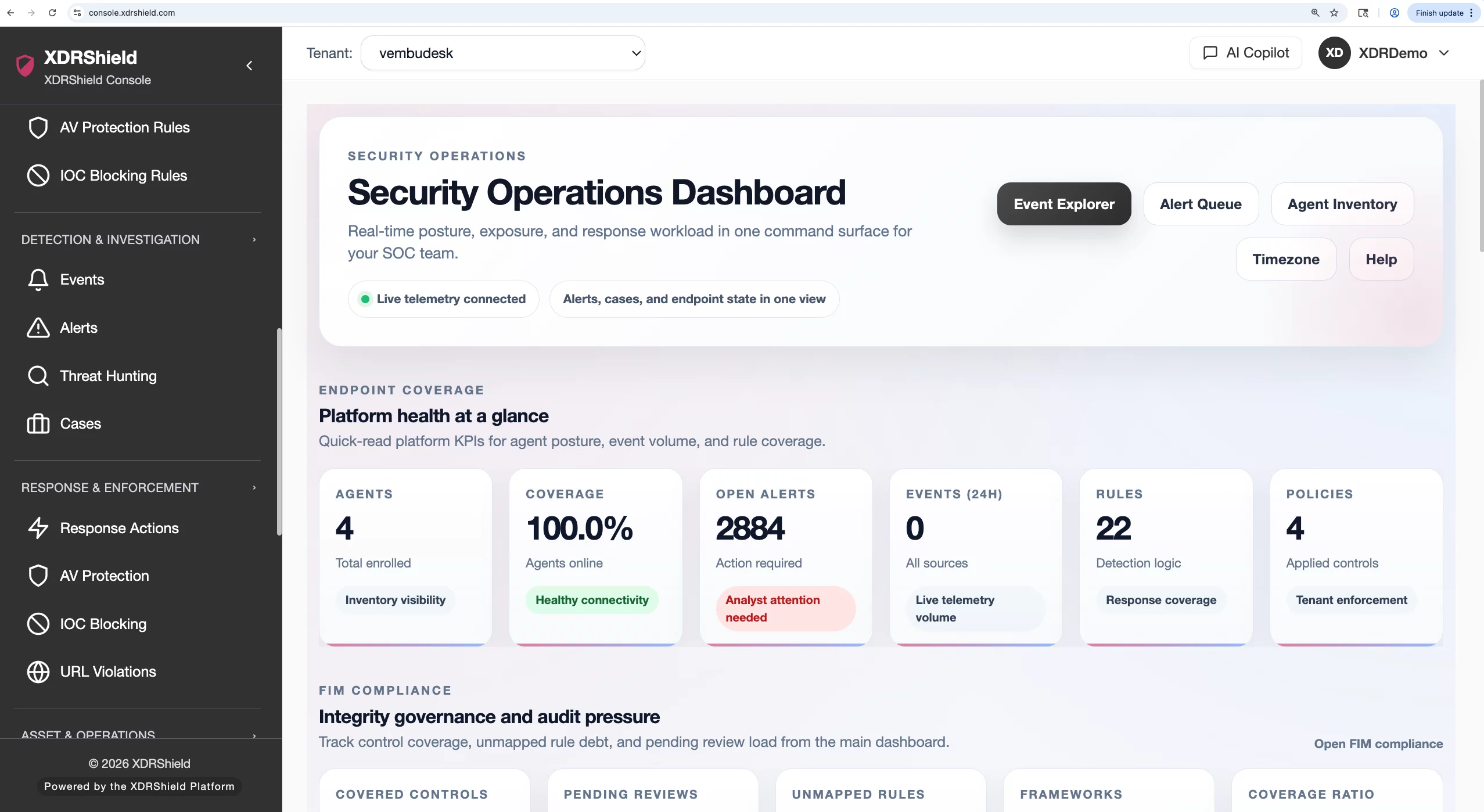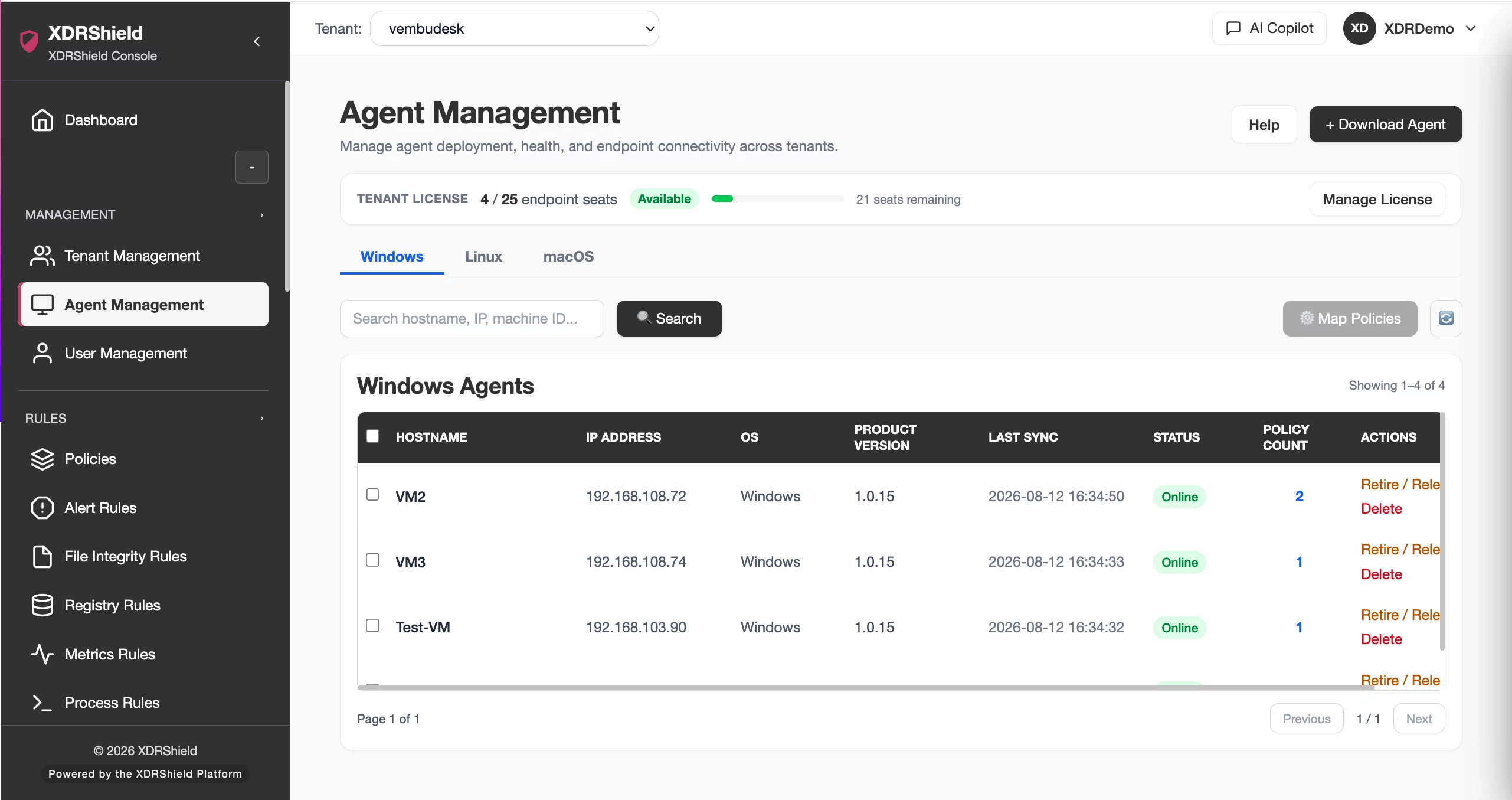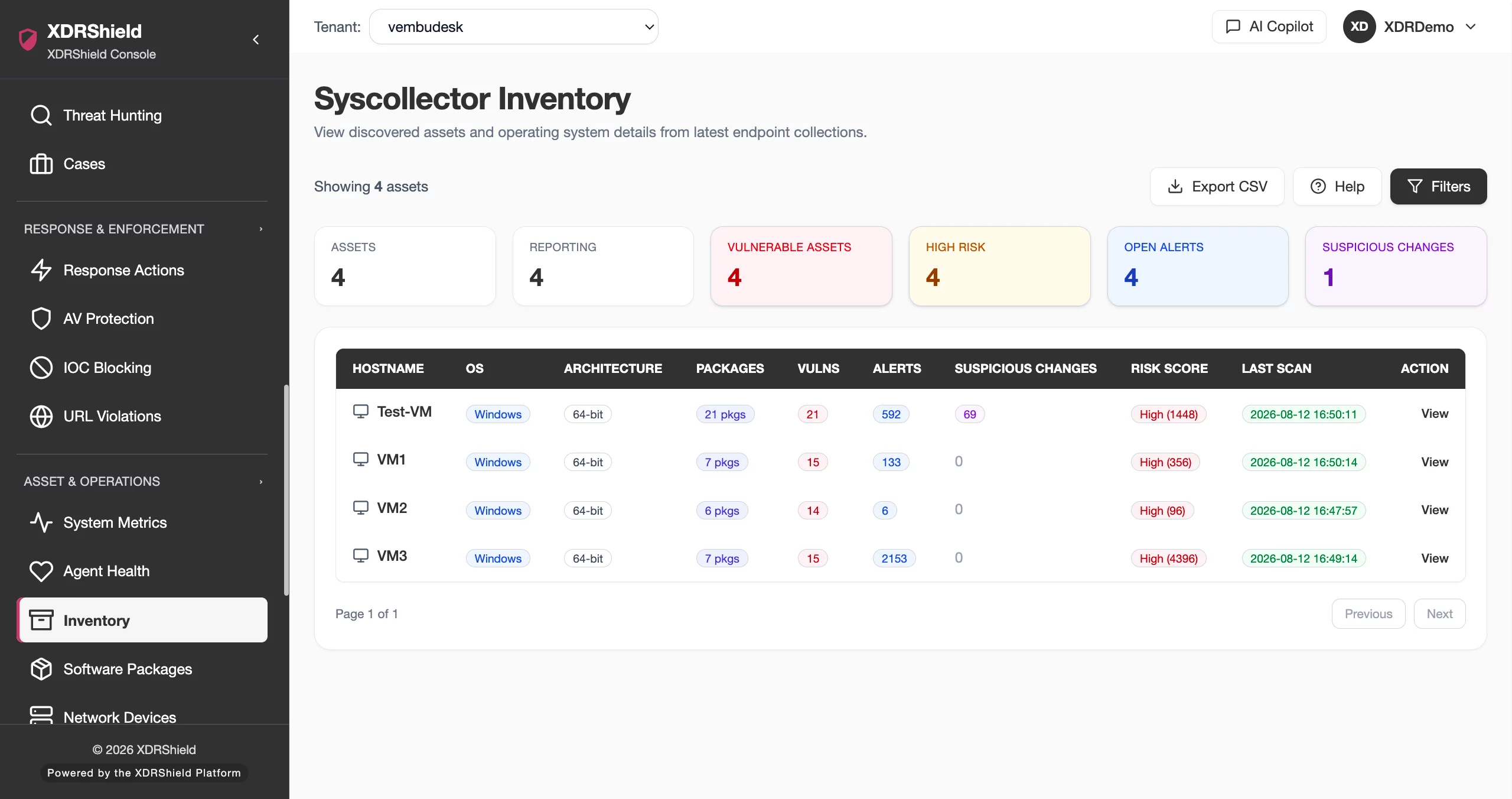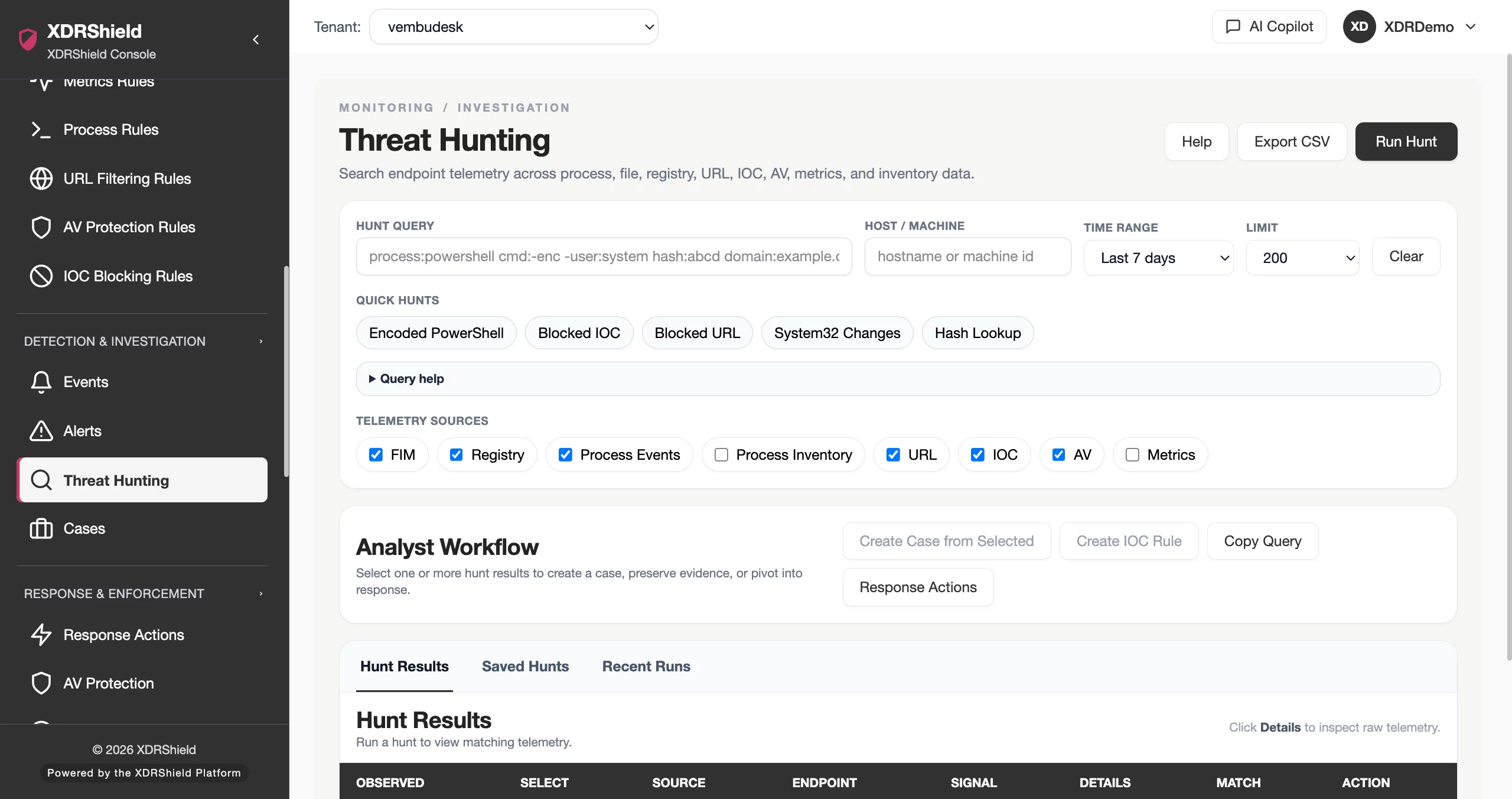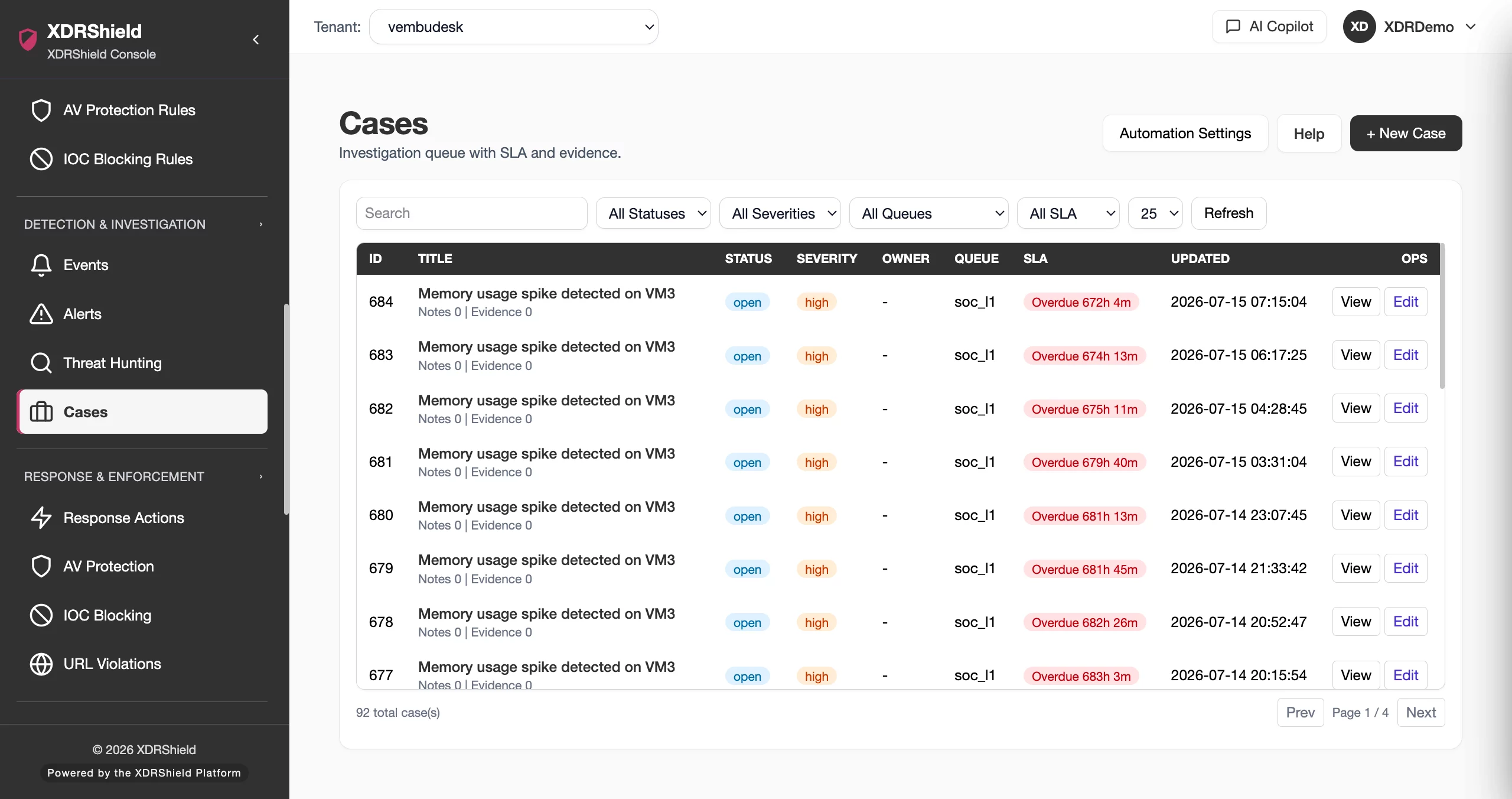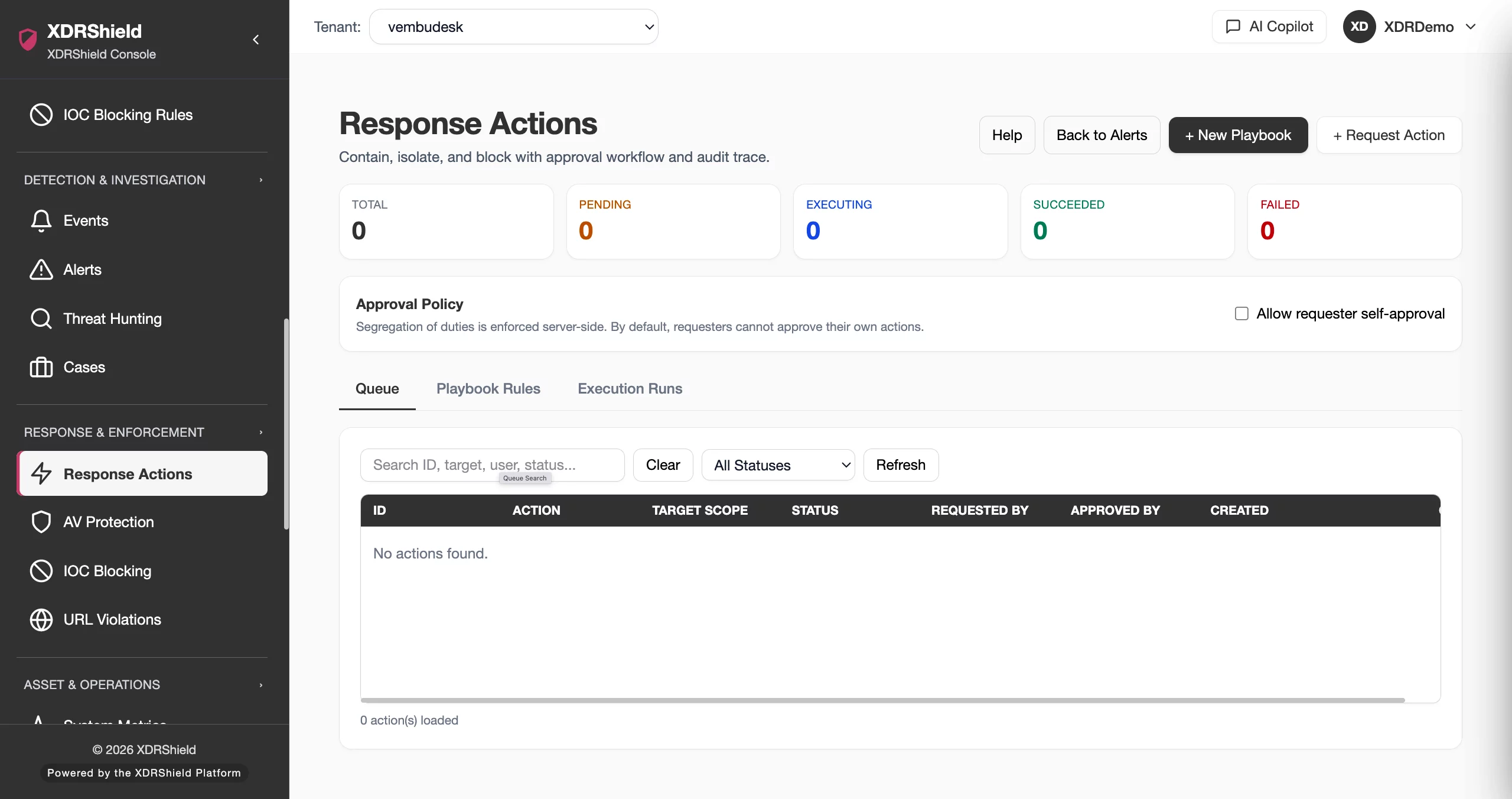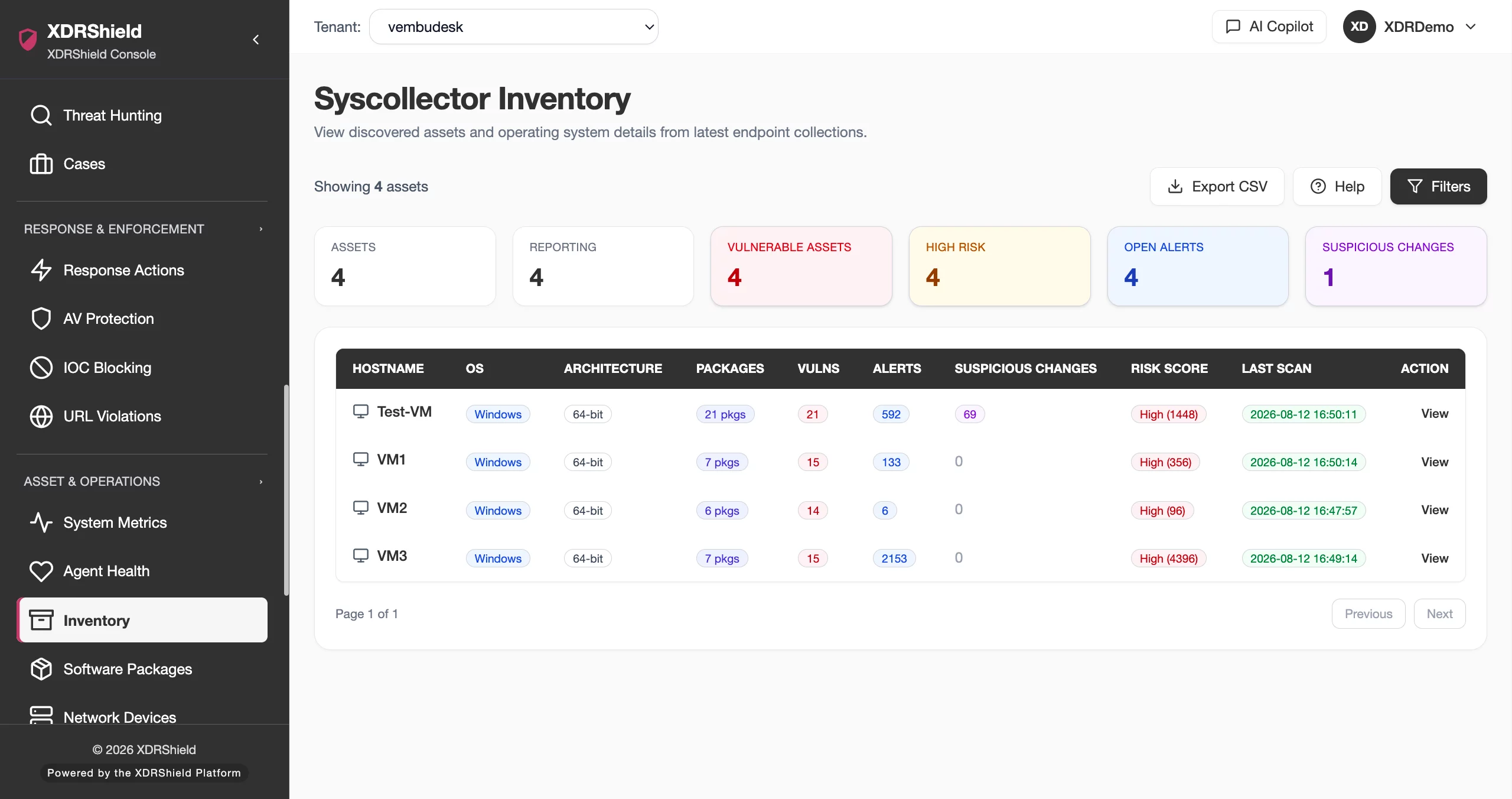
Keep security timelines, reports, and tenant operations aligned to the correct business time.
XDRShield Timezone Settings helps administrators configure the time context used across dashboards, alerts, cases, reports, audit logs, and customer-facing operations so investigation evidence and service reviews are interpreted correctly.
Time context matters when security evidence becomes a decision.
Alerts, audit records, cases, vulnerability windows, deployment activity, and customer reports all depend on trustworthy timestamps. Timezone Settings helps teams avoid confusion during investigation, SLA review, and multi-tenant operations by keeping displayed time aligned with the intended business context.
Treat timezone as an evidence-quality setting, not just a user preference.
Timezone configuration affects how operators read timestamps across security and administrative workflows. Teams should validate the selected time zone when comparing alerts, response actions, policy changes, and reports, especially in distributed or multi-customer environments.
- Configure the time zone used for displayed security and operations evidence.
- Confirm time context before investigating cross-region alerts, cases, or audit records.
- Align reporting windows with customer, business, or service-delivery expectations.
- Document changes when timezone settings affect compliance or customer review workflows.
What XDRShield Timezone Settings helps teams do.
Each capability supports the operating workflow for timezone settings, from configuration and validation to governance, response, and follow-up.
Timezone configuration
Set the operational time context used across XDRShield views and reports.
Timeline interpretation
Read alerts, events, audit logs, and cases using the correct business time context.
Report window alignment
Keep scheduled or reviewed reports aligned with stakeholder expectations.
Investigation correlation
Compare endpoint, alert, response, and audit activity without time-zone ambiguity.
Administrative control
Review configuration changes when timezone settings affect operations.
SLA and escalation timing
Use consistent time context when reviewing alert response and case timelines.
Cross-workflow consistency
Keep dashboards, cases, reports, and logs aligned across workflows.
Customer-specific context
Support customer or regional time expectations in MSP operations.
From timezone setup to trusted timeline review.
A consistent workflow prevents timestamp confusion during investigations and reporting.
Confirm operating context
Identify whether the setting should reflect business, tenant, region, or service-delivery time.
Review current setting
Check the configured timezone before comparing historical evidence.
Apply the correct timezone
Set the expected timezone for the environment or tenant scope.
Validate displayed timestamps
Review dashboard, alert, case, audit, and report views after the change.
Communicate reporting impact
Tell stakeholders if report windows or review times will appear differently.
Use audit evidence
Retain change context when timezone settings affect investigations or compliance review.
Where Timezone Settings helps most.
Use Timezone Settings when timestamp interpretation affects investigations, reporting, or customer operations.
Incident timeline review
Interpret alerts, events, hunts, cases, and response activity in the correct local context.
Scheduled reporting
Align report periods and review windows with the business or customer timezone.
SLA tracking
Avoid confusion when response expectations depend on local time.
Cross-region correlation
Compare activity from multiple regions without timestamp misunderstandings.
Administrative audit
Understand when settings and access changes occurred.
MSP customer reviews
Present customer-facing evidence using the expected tenant time context.
Know which time context you are using before interpreting evidence.
This table helps operators understand how timezone choices affect workflows.
| Area | What it means | How teams use it |
|---|---|---|
| Account or tenant timezone | The configured time context for the environment or customer. | Use as the default for dashboards, reports, and service review. |
| Event source time | The timestamp associated with endpoint or system activity. | Use when correlating raw evidence or investigation timelines. |
| Operator local time | The administrator or analyst local viewing context. | Use carefully when teams work across regions. |
| Reporting window | The start/end period used for summaries or exports. | Validate before customer, SLA, or compliance review. |
Timezone Settings for security, IT, and MSP teams.
Timezone Settings supports day-to-day operations while keeping tenant scope, evidence, and accountable change control clear.
For security and IT teams
Use this feature to keep administrative control, endpoint policy behavior, and operational evidence aligned with the intended environment.
- Validate tenant and user scope before changes.
- Review related logs, alerts, and settings before broad action.
- Use cases, audits, and operations health for follow-up evidence.
For MSP and service-provider teams
Use tenant-aware administration so customer environments stay separated while configuration patterns remain repeatable.
- Confirm customer or tenant scope before bulk changes.
- Standardize controls without mixing customer data.
- Preserve evidence for customer-facing service reviews.
Timezone Settings FAQs.
What are Timezone Settings in XDRShield?
Timezone Settings define the time context used when administrators review dashboards, alerts, events, cases, reports, and audit evidence.
Why do timezone settings matter for investigations?
Analysts need consistent timestamps to correlate alerts, endpoint activity, response actions, and administrative changes across workflows.
How should MSP teams use timezone settings?
MSP teams should align customer-facing views and reports to the tenant or customer time context expected during service reviews.
Can timezone changes affect reports?
Yes. Timezone settings can change how reporting windows and timestamps appear, so teams should validate report periods after changes.
What should be checked after changing timezone?
Review dashboards, alerts, cases, audit logs, and reports to confirm timestamps display as expected.
Align time settings before evidence becomes confusing.
Use XDRShield Timezone Settings to keep investigations, reports, and customer operations aligned to the correct business time.